Introduction
Docker AI Agent (docker-ai) is a Go-based AI agent that helps you inspect and operate your local Docker environment through an interactive terminal UI without the need for docker desktop.
Instead of memorizing Docker commands or digging through docker inspect output, you simply describe what you want in plain language. The agent understands the current state of your Docker setup, including containers, images, volumes, and networks, and it can execute real Docker commands on your behalf inside a controlled loop.
The project combines two things that work well together: a thin wrapper around the official Docker SDK for reading environment state,
and an LLM-driven planning loop built on Firebase Genkit. The model proposes the next action,
the proposed command is checked for safety,
and then it is executed through the local docker CLI. Results are fed back to the model so it can reason over them and decide what to do next,
repeating until your goal is complete.
How it works
When you start the agent, it connects to your local Docker daemon and captures a snapshot of the environment: running and stopped containers, images with their tags and sizes, volumes, and networks. This snapshot is embedded into the system prompt so the model always has accurate context about your machine.
Each message you send goes through a short pipeline:
- An LLM-based classifier decides whether your message is a general question, an action request, or something ambiguous.
- General questions are answered directly by the model without touching Docker at all.
- Action requests enter an iterative plan and execute loop. On every iteration the model explains its thought, calls a tool (currently the
docker_command_tool, which runs any Docker CLI command), receives the output, and continues until it considers the goal done. - Thoughts, progress updates, and the final answer are streamed back into the terminal chat while the agent works.
Features
- Terminal chat interface built with the Charm stack (Bubble Tea), designed for interactive back and forth conversation.
- Docker awareness: containers, images, volumes, and networks are snapshotted via the Docker SDK and injected into every prompt.
- Real tool execution: the agent does not just suggest commands, it runs them locally and reads their output.
- Safety checks: destructive commands such as
rm,prune, orstoptrigger a confirmation warning in the UI before anything executes. - Pluggable LLM providers through Genkit: Google Gemini, OpenAI, Anthropic, Ollama (local), DeepSeek, Kimi, Qwen, and Grok are supported out of the box.
- Session memory: previous goals and executed commands are stored and included in later prompts, giving the agent continuity across messages.
Project status
The project is in active development. The core chat experience is functional today:
| Command | Status |
|---|---|
agent-chat (ac) | Working |
initialize-rag | Planned |
enable-rag | Planned |
The planned RAG commands will extend the agent with retrieval augmented generation, letting it ground its answers in indexed documentation and project-specific knowledge.
License
Licensed under the Apache License, Version 2.0. See LICENSE.
Getting Started
This page walks you through everything needed to go from a clean machine to a working chat session with the agent: installing the prerequisites, obtaining and storing an API key, writing a configuration file, and launching the program.
Prerequisites
| Requirement | Notes |
|---|---|
| Go 1.25+ | Needed to build and run from source |
| Docker Engine | Must be installed and running locally; the agent talks to the daemon through the Docker SDK |
docker binary in PATH | Tool execution shells out to the local CLI, so it must be resolvable |
| An LLM API key | From Gemini, OpenAI, Anthropic, DeepSeek, Kimi, Qwen, Grok, or use Ollama locally. You only need one |
Before anything else, confirm that Docker is reachable on your machine:
docker info
The agent pings the daemon during startup and exits immediately with an error if it cannot be reached, so it is worth checking now rather than later.
Building from source
Clone the repository and compile the binary:
git clone https://github.com/your-org/docker-ai-agent.git
cd docker-ai-agent
go build -o docker-ai .
You can also skip building entirely and run directly with Go:
go run .
Verify that everything is wired up correctly:
./docker-ai --help
You should see the docker-ai help text along with the available commands, including agent-chat.
API keys
The agent needs an API key from one of the supported providers. There are two ways to provide it, and you should pick exactly one:
- An environment variable, which is the recommended option.
- The
api-keyfield insideconfig.json, which is quick but easier to leak by accident.
If the api-key field is absent or empty, the agent automatically falls back to the matching environment variable for whichever provider you configured.
Getting a key
Google Gemini
- Open Google AI Studio and sign in with your Google account.
- Click Create API key and copy the generated value.
- The free tier is enough to run
gemini-2.5-flash-lite, which makes Gemini the cheapest way to try the project.
Environment variable name: GEMINI_API_KEY
OpenAI
- Open platform.openai.com/api-keys and sign in.
- Click Create new secret key and copy the value. It starts with
sk-and is shown only once. - OpenAI is a paid API, so make sure your account has billing credit before using it.
Environment variable name: OPENAI_API_KEY
Anthropic
- Open console.anthropic.com/settings/keys and sign in.
- Click Create Key and copy the value. It starts with
sk-ant-.
Environment variable name: ANTHROPIC_API_KEY
DeepSeek
- Open platform.deepseek.com/api_keys and sign in.
- Create an API key and copy the value.
Environment variable name: DEEPSEEK_API_KEY
Kimi (Moonshot AI)
- Open platform.moonshot.cn/console/api-keys and sign in.
- Create an API key and copy the value.
Environment variable name: KIMI_API_KEY
Qwen (Alibaba)
- Open dashscope.console.aliyun.com/apiKey and sign in.
- Create an API key and copy the value.
Environment variable name: QWEN_API_KEY
Grok (xAI)
- Open console.x.ai/ and sign in.
- Create an API key and copy the value.
Environment variable name: GROK_API_KEY
Ollama (local)
No API key required. Install Ollama from ollama.com and ensure the server is running:
ollama serve
Configure the server address in your config.json:
{
  "provider": "Ollama",
  "model-name": "llama3",
  "server-address": "http://localhost:11434"
}
Storing the key as an environment variable
For the current shell session only, export the variable before running the agent:
export GEMINI_API_KEY="your_key_here"
To make it persistent across sessions, add the same line to your shell profile (~/.bashrc if you use bash, ~/.zshrc if you use zsh) and then reload it:
source ~/.bashrc
A common pattern is to keep all your local secrets in a dedicated .env file in the repository root and source it right before running:
# .env  (make sure this file is listed in .gitignore)
export GEMINI_API_KEY="your_key_here"
source .env && go run . agent-chat
Whichever approach you choose, double check that files containing real keys are covered by .gitignore so they can never be committed.
Storing the key inside config.json
You can also place the key directly in the configuration file:
{
  "provider": "Gemini",
  "model-name": "googleai/gemini-2.5-flash-lite",
  "api-key": "your_key_here"
}
This is convenient for local experiments but risky in practice. If you share the folder, copy the config between machines, or accidentally commit it, the key leaks. If you use this option, never commit a config.json containing a real key to version control.
Security tips
- Never commit API keys to git. If a key has been exposed, rotate it immediately from the provider console.
- Prefer restricted or scoped keys where the provider supports them.
- Remember which provider maps to which variable:
GeminiusesGEMINI_API_KEY,OpenAiusesOPENAI_API_KEY,AnthropicusesANTHROPIC_API_KEY,DeepSeekusesDEEPSEEK_API_KEY,KimiusesKIMI_API_KEY,QwenusesQWEN_API_KEY, andGrokusesGROK_API_KEY. Ollama does not require an API key. The resolution rules are described in detail on the Reference page.
Configuration
The agent reads its settings from a JSON file. By default it looks for config.json in the current working directory, and you can point at any other file with the -c flag when running the command.
Minimal example
{
  "provider": "Gemini",
  "model-name": "googleai/gemini-2.5-flash-lite",
  "temperature": 0.7,
  "max-tokens": 1024,
  "max-iterations": 10
}
With this config and no api-key field present, the agent will read the key from GEMINI_API_KEY at startup.
Fields explained
| Field | Type | Required | Description |
|---|---|---|---|
provider | string | yes | Which LLM backend to use: Gemini, OpenAi, Anthropic, Ollama, DeepSeek, Kimi, Qwen, or Grok |
model-name | string | yes | The provider specific model ID, for example googleai/gemini-2.5-flash-lite |
api-key | string | no | API key used for authentication; falls back to the environment when omitted |
temperature | float | no | Sampling temperature; higher values make output more creative, lower values more deterministic |
max-tokens | int | no | Upper limit on tokens generated per model response |
max-iterations | int | no | Maximum number of plan and execute loop iterations per user request |
The loader validates this data and refuses to start when something important is wrong. It rejects an unknown provider name, an empty model name, a negative iteration count, and a setup where no key could be found in either the file or the environment. The full list of validation errors lives on the Reference page.
Running the agent
Launch the interactive chat with the main command or its short alias:
go run . agent-chat
# or
go run . ac
If you compiled the binary earlier, use it instead:
./docker-ai agent-chat
The -c / --config flag selects a config file at a custom location:
go run . agent-chat -c ./my-config.json
At runtime three things must hold: the Docker daemon has to be running because the agent pings it on startup, a valid API key must be resolvable from the config file or the environment, and the docker binary must exist in your PATH since tool execution shells out to it. If any of these fail, the command exits early with a descriptive error rather than misbehaving later.
The planned initialize-rag and enable-rag commands do not exist yet. Once implemented they will set up and activate retrieval augmented generation so the agent can ground its answers in indexed documentation.
Usage
This page explains what the agent can do for you day to day, how a request travels through the system, and how the built in safety mechanisms protect your environment. Reading it will help you write better prompts and understand what the agent is doing at each moment.
The chat interface
Running agent-chat opens a Bubble Tea terminal UI where you converse with the agent in plain language. There are no special command syntaxes to learn; you type messages the way you would talk to a colleague.
Typical things to ask:
- Questions about the current state of your machine, such as “what containers am I running?” or “how much space do my images take up?”
- Actions you want performed, such as “start an nginx container on port 8080” or “restart the redis container”
- General Docker knowledge questions, such as “what is the difference between CMD and ENTRYPOINT?”
Session flow
- You type a message and send it.
- The agent runner starts the agent loop in a background goroutine so the UI stays responsive. Only one run can be active at a time.
- While the agent works, the chat shows its current thought so you can follow the reasoning live.
- When it finishes, the final response is rendered into the conversation.
Canceling a run
While the agent is working you can press esc to cancel the request. The run aborts cleanly, a “Request canceled.” message appears in the conversation, and you get the input back immediately.
Session states
The chat session moves through a small set of states defined under tui/screens/chat_session/:
| State | What you see |
|---|---|
| Normal | Idle chat where you can type a new message |
| Agent running | The agent is thinking or executing tools, with thoughts streaming in |
| Warning | A destructive Docker command was proposed and awaits your approval or rejection |
| Options | Selection lists used for confirmations and choices |
The warning state deserves attention: when the agent proposes anything destructive, nothing executes until you explicitly confirm. This flow is described further below.
How the agent works
Understanding the pipeline helps you predict behavior and phrase requests that the agent handles well.
Step 1: Docker context snapshot
On startup the agent connects to the Docker daemon and captures a structured snapshot of the environment through docker.GetContext. It records containers with their names, images, states, and port mappings; images with tags and sizes; volumes with drivers; and networks with drivers and scopes. IDs are trimmed to twelve characters to keep prompts compact.
This snapshot is rendered into text by FormatContextPrompt and embedded into the system prompt. As a result, the model never has to guess what exists on your machine; it can see your containers and images from the very first token.
Step 2: Intent classification
Each incoming message first passes through an LLM based classifier that assigns one of three labels:
| Intent | Behavior |
|---|---|
general_question | Answered directly by the model. No tools run, so pure knowledge questions stay fast and side effect free |
action_request | Enters the plan and execute loop described next |
ambiguous | The agent stops and asks whether you wanted information or an action, rather than guessing |
The classifier also rewrites vague phrasing into a clearer instruction before the loop starts, which improves reliability on casually worded requests.
Step 3: Plan and execute loop
Action requests drive an iterative loop bounded by max-iterations, with a short delay inserted between calls to be gentle on provider rate limits.
On every iteration the model receives your goal, the progress made so far, previous chat history loaded from memory, and the outputs of any commands already executed. It must answer with strict JSON of this shape:
{
  "thought": "why I am doing this next",
  "finalResponse": "the answer for the user once done",
  "done": false
}
When done is false, the model also requests a tool call. Today there is one tool available, docker_command_tool, which accepts any valid Docker CLI command. The command runs locally, and its stdout, stderr, exit code, and duration come back as structured JSON that gets appended to the loop context. Reasoning then continues from that new evidence.
When done becomes true, the final response is delivered to the chat and the completed goal plus all executed commands are saved to memory.
Response parsing is forgiving: if the model wraps its JSON in code fences or adds prose around it, regular expressions extract the JSON object before decoding.
Error handling
Provider hiccups are handled gracefully. On a 503 response the agent tells you it is retrying after five seconds instead of failing outright. On a 429 rate limit response the run stops with a clear message because backing off automatically could burn through your quota. If the iteration limit is reached without completion, the loop halts rather than spinning forever.
Memory
A MemoryStore (in memory implementation today) keeps completed goals, executed commands, and intermediate steps. Future prompts include this history labeled as previous chat, which gives the agent continuity: after helping you start nginx, a later message like “stop it again” still makes sense.
Safety and destructive commands
Because the agent can run arbitrary Docker CLI commands, destructive operations get special treatment.
How detection works
Before any tool call executes, the proposed command string passes through docker.IsDestructive. That function lowercases the command and checks whether it contains any of these verbs as an argument:
var DestructiveVerbs = []string{
    "rm", "rmi", "prune", "stop", "kill", "down", "restart", "pause", "remove",
}
Commands such as docker rm my-container or docker system prune match and raise a warning. Safe read only commands like docker ps pass straight through without interrupting you.
What happens on a match
The TUI switches to the warning state and displays the exact offending command, for example:
docker command "docker rm nginx" contains a destructive command
You must confirm before execution proceeds. If you reject, the command does not run and the agent is informed that you declined, letting it explain itself or propose an alternative.
Limitations
Detection is string based, which means it catches known destructive verbs but not every conceivable harmful operation. Commands that cause damage in unusual ways may not be flagged, and heavy but non destructive actions such as starting resource hungry containers execute without confirmation. Keep in mind also that the agent operates with whatever privileges your Docker daemon has, which on most Linux setups is root equivalent on the host.
Best practices
- Read every warning carefully before confirming.
rm,prune, anddowncan remove data that is difficult or impossible to recover. - Avoid pointing the agent at production Docker hosts until you have built trust in its behavior.
- Prefer named containers and volumes you recognize over ambiguous short IDs when approving destructive actions.
RAG Pipeline Guide
Retrieval Augmented Grounding (RAG) lets the Docker AI Agent search through real Docker documentation before answering your questions. Instead of relying only on what the LLM was trained on, the agent retrieves relevant chunks from the official Docker docs and uses them as context.
This guide explains how the pipeline works, how to configure it, and how to initialize it.
Architecture
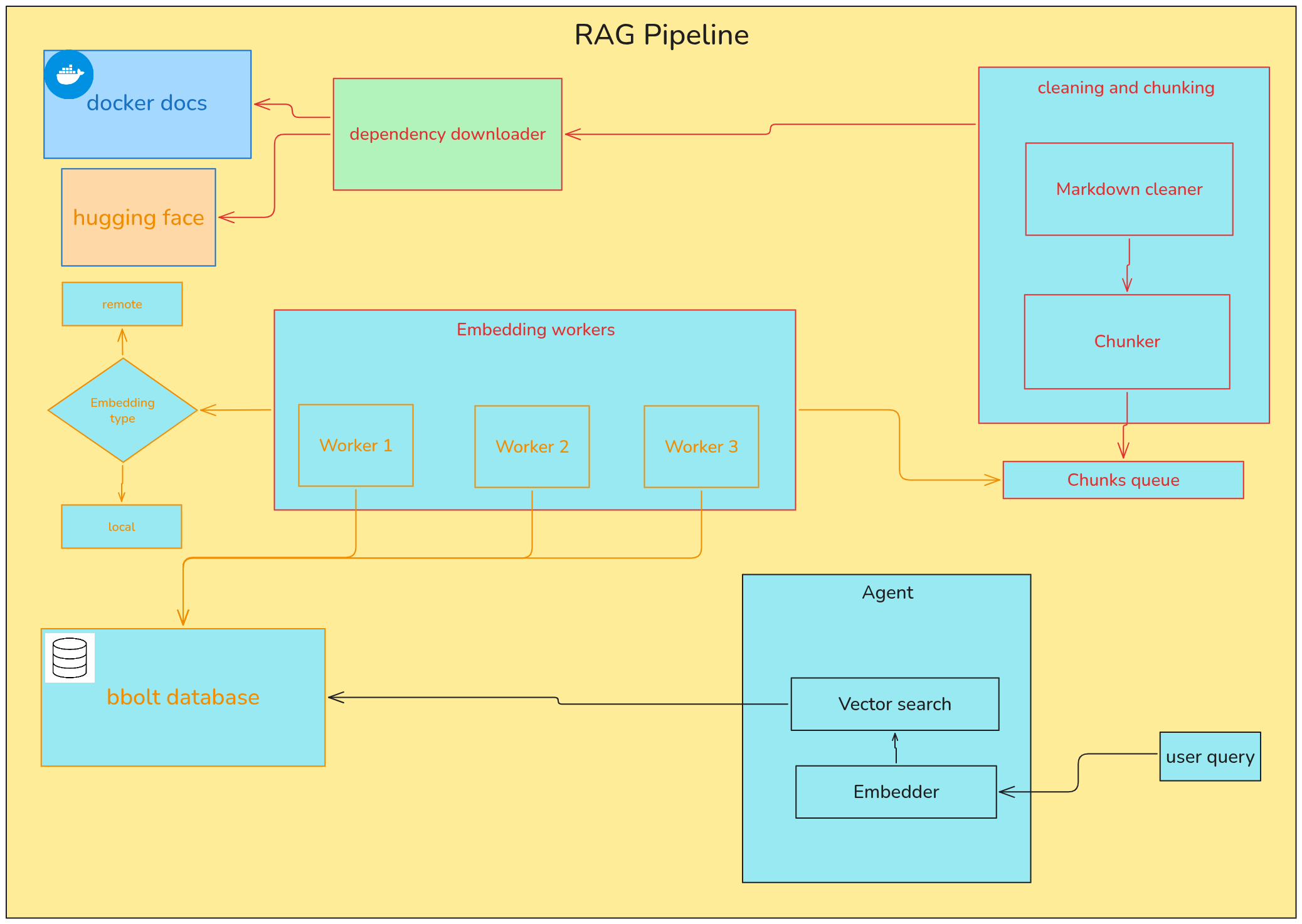
The pipeline has two main phases:
- Indexing phase (run once via
initalizeRag): Downloads Docker docs, cleans them, chunks them into pieces, embeds each chunk into a vector, and stores everything in a local database. - Query phase (happens automatically during agent chat): Loads the stored vectors into an in-memory index, embeds the user’s question, and searches for the most similar document chunks.
How It Works
Step 1: Download Docker Documentation
The pipeline downloads the entire Docker docs repository from GitHub as a zip file. It extracts only the markdown files from the content/ directory and saves them under $HOME/.docker_agent/content/.
If the docs already exist on disk, this step is skipped.
Step 2: Clean the Markdown Files
Each markdown file is cleaned to remove:
- Hugo shortcodes (anything inside
{{ }}blocks) - Empty lines
This reduces noise before chunking.
Step 3: Chunk the Documents
The cleaned markdown files are split into smaller pieces (chunks) using a markdown-aware text splitter. The splitter:
- Preserves heading hierarchy so chunks keep their section context
- Keeps code blocks intact
- Maintains separators between sections
Each chunk is tagged with metadata from the file’s front matter (title, description, keywords) and the source file path.
Chunks are sent into a buffered channel as they are produced.
Step 4: Embed the Chunks
Worker goroutines pull chunks from a queue channel and embed them into vectors. You can choose between two embedding modes:
Local Embedding (recommended)
- Uses the
bge-small-en-v1.5model from HuggingFace - Runs via ONNX Runtime using the
hugotGo package - CPU mode works out of the box with no extra setup, but is slow (can take over 3 hours for the full docs)
- GPU mode is much faster (around 4 minutes) but requires CUDA and ONNX Runtime
Remote Embedding
- Uses Google embedding models through the Genkit library
- Requires an API key set via
embedding-api-keyin config or theEMBEDDING_API_KEYenvironment variable - Faster and simpler to set up, but requires a paid API key
Step 5: Store in BBolt Database
Embedded vectors are written to a BBolt (embedded key-value) database using batch writes. This means multiple inserts are grouped into single transactions under the hood, making it safe for concurrent workers.
The database file is stored at $HOME/.docker_agent/dockerChunksDb.db.
Step 6: Query Time Retrieval
When the agent starts a chat session, the retriever:
- Opens the BBolt database
- Reads all embedded documents into an in-memory vector index (powered by
chromem-go) - Embeds the user’s question using the same embedding model
- Performs a similarity search to find the top 10 most relevant chunks
- Returns those chunks as context to the LLM
Note: The in-memory index is rebuilt from disk every time the agent starts. This means startup can be slow depending on how many documents are stored.
Configuration
RAG is configured through the rag section in your config.json file. Here is a full example with all available options:
{
  "provider": "Gemini",
  "model-name": "googleai/gemini-2.5-flash-lite",
  "max-iterations": 10,
  "rag": {
    "embedding-type": "local",
    "inference-type": "gpu",
    "chunk-size": 256,
    "overlap-size": 50,
    "workers-number": 4
  }
}
Configuration Fields
| Field | Type | Required | Description |
|---|---|---|---|
embedding-type | string | Yes | Either "local" or "remote". Local uses the bge-small-en-v1.5 model. Remote uses Google models via Genkit. |
inference-type | string | Only for local | Either "cpu" or "gpu". GPU requires CUDA and ONNX Runtime. Ignored for remote embeddings. |
chunk-size | int | Yes | Maximum size of each text chunk in characters. Must be greater than 0. |
overlap-size | int | Yes | Number of characters that overlap between consecutive chunks. Must be less than chunk-size. |
workers-number | int | Yes | Number of concurrent embedding workers. Higher values use more CPU/GPU resources. |
model-name | string | No | Name of the embedding model. Only used for remote embeddings. Defaults to Google models. |
embedding-api-key | string | Only for remote | API key for the embedding provider. If not set, the pipeline looks for the EMBEDDING_API_KEY environment variable. |
Example: Local Embedding with CPU
{
  "rag": {
    "embedding-type": "local",
    "inference-type": "cpu",
    "chunk-size": 256,
    "overlap-size": 50,
    "workers-number": 2
  }
}
Example: Local Embedding with GPU
{
  "rag": {
    "embedding-type": "local",
    "inference-type": "gpu",
    "chunk-size": 256,
    "overlap-size": 50,
    "workers-number": 4
  }
}
Example: Remote Embedding
{
  "rag": {
    "embedding-type": "remote",
    "chunk-size": 256,
    "overlap-size": 50,
    "workers-number": 4,
    "embedding-api-key": "your_api_key_here"
  }
}
You can also set the API key via environment variable instead of putting it in the config file:
export EMBEDDING_API_KEY=your_api_key_here
Initializing the RAG Pipeline
Before you can use RAG, you need to run the initialization command. This downloads the Docker docs, downloads the embedding model (if using local), cleans and chunks the documents, embeds them, and stores everything in the database.
Basic Command
go run . initalizeRag
Or use the shorter alias:
go run . ir
With a Custom Config File
go run . initalizeRag -c ./my-config.json
Or with the alias:
go run . ir -c ./my-config.json
What Happens During Initialization
- The pipeline creates the dependency directory at
$HOME/.docker_agent/if it does not exist. - It downloads the Docker docs zip from GitHub, extracts the markdown files, and saves them under
$HOME/.docker_agent/content/. - If using local embedding, it downloads the
bge-small-en-v1.5model files from HuggingFace to$HOME/.docker_agent/local_model/. - Each markdown file is cleaned (Hugo shortcodes and empty lines removed).
- Cleaned files are chunked and sent to a channel.
- Embedding workers pull chunks from the queue and embed them.
- Embedded vectors are stored in the BBolt database at
$HOME/.docker_agent/dockerChunksDb.db.
A progress bar is displayed during embedding so you can track the process.
Resuming Initialization
The initialization process can be stopped and resumed. If you stop it midway:
- The Docker docs are already downloaded and will not be re-downloaded.
- The embedding model is already downloaded and will not be re-downloaded.
- Chunks that were already embedded and stored in the database are skipped when you run the command again.
This means you can safely re-run initalizeRag without starting from scratch.
Dependencies and Storage
All RAG dependencies are stored under $HOME/.docker_agent/. The directory structure looks like this:
$HOME/.docker_agent/
  content/           # Extracted Docker docs (markdown files)
  local_model/       # Downloaded bge-small-en-v1.5 model files
    config.json
    tokenizer.json
    tokenizer_config.json
    special_tokens_map.json
    vocab.txt
    model.safetensors
    onnx/
      model.onnx
  dockerChunksDb.db  # BBolt database with embedded vectors
Disk Space
- The Docker docs are roughly 50-100 MB when extracted.
- The bge-small-en-v1.5 model files are approximately 250 MB total.
- The database size depends on the number of chunks and their embedding dimensions.
GPU Setup
If you want to use GPU acceleration for local embedding, you need two things:
1. CUDA Runtime
Install the CUDA runtime packages. The exact version depends on your NVIDIA GPU. For example:
sudo apt install cuda-cudart-13-3 libcublas-13-3 libcurand-13-3 libcufft-13-3 libcudnn9-cuda-13
Check your GPU and driver version to determine the right CUDA packages for your system.
2. ONNX Runtime
The ONNX Runtime library must be installed and compatible with your CUDA version. Visit the official repository for installation instructions:
https://github.com/microsoft/onnxruntime
The local embedder looks for the ONNX shared library at /usr/local/lib/ by default.
Important Notes
-
Chunk size and model tokens: The chunk size must not exceed the maximum number of tokens the embedding model accepts. For example,
bge-small-en-v1.5expects a maximum of 512 tokens. If your chunk size is too large, the embedding will fail partway through. A chunk size of 256 is a safe starting point. -
Overlap size: The overlap size must always be smaller than the chunk size. A good default is around 10-20% of the chunk size.
-
Workers number: Set this based on your system resources. Too many workers can exhaust CPU/GPU memory. For CPU, start with 2 workers. For GPU, 4 workers is reasonable.
-
Startup time: On every agent start, the entire vector index is rebuilt from the BBolt database into memory. This adds startup time proportional to the number of embedded documents.
-
Remote embedding provider: Currently only Google models are supported for remote embedding through Genkit. Support for other providers may be added later.
-
Pre-built database: A pre-built database file with pre-embedded data may be shipped in the future for users who cannot afford the time to embed with CPU and do not have a GPU.
Troubleshooting
Embedding stops in the middle: Your chunk size is likely too large for the model. Reduce chunk-size to 256 or lower.
CUDA errors: Make sure your CUDA version is compatible with the ONNX Runtime version you installed. Check that the ONNX shared library is present at /usr/local/lib/.
API key not found for remote embedding: Set the EMBEDDING_API_KEY environment variable or add embedding-api-key to the rag section in your config file.
Database locked error: Make sure no other instance of the agent is running. BBolt only allows one process to open the database at a time.
Slow CPU embedding: This is expected. The full Docker docs corpus can take over 3 hours to embed on CPU. Consider using GPU mode or remote embedding if you need faster results.
Architecture
This page describes how the project is put together: the major components, how data flows through them, and what each package is responsible for. It is written for contributors who want to modify the agent or add new capabilities.
Component map
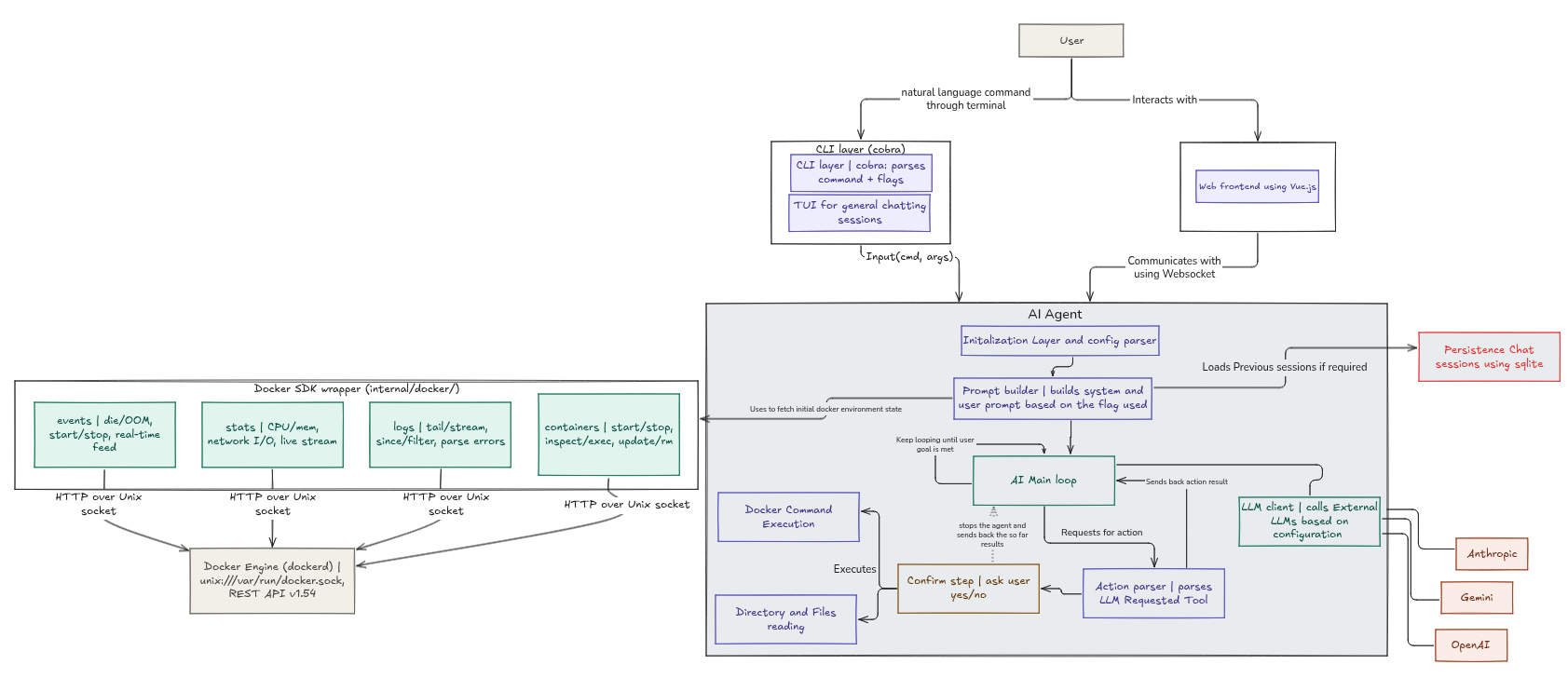
Data flow for a user message
- The user submits a message from the TUI, and the agent runner (
tui/agent_runner.go) spawns the agent loop in a goroutine, passing the user message over theAgentCommunicationchannels defined ininternal/core/agent_communication.go. The runner guarantees that at most one loop is alive at any time. - Earlier, at startup, the agent captured a Docker context snapshot through the SDK. The snapshot is formatted into text and embedded in the system prompt.
- The intent classifier labels the message as a question, an action request, or ambiguous.
- Action requests run the plan and execute loop. Each iteration may invoke
docker_command_toolthrough the tool executor. - Tools shell out to the local
dockerbinary. Destructive commands route back through the TUI for confirmation before running. - Thoughts, retry notices, warnings, and final responses stream to the TUI over the channel, which closes when the run completes. The runner then tears the run down and emits a single terminal event that returns the UI to the idle state.
Package layout
main.go              Entry point, calls cmd.Execute()
cmd/                 Cobra commands: agent-chat plus planned initialize-rag / enable-rag
internal/app         Agent assembly and a mock agent loop for testing
internal/core        Config, Genkit client, agent loop, classifier, prompts,
                     tool registry and executor, memory, communication channels
internal/docker      Docker SDK client, exec helpers, context formatting
internal/models      Shared models: agent steps and results, docker summaries
internal/tools       Concrete tool implementations
tui/                 Agent runner, Bubble Tea root model, screens, common
                     styles, widgets
The module itself is named docker-cli (visible in go.mod) even though the repository is called docker-ai-agent.
Agent core (internal/core)
Genkit client
NewGenkitClient initializes Firebase Genkit with the provider plugin selected by configuration:
| Provider | Plugin |
|---|---|
Gemini | googlegenai.GoogleAI |
OpenAi | compat_oai/openai.OpenAI |
Anthropic | anthropic.Anthropic |
Ollama | ollama.Ollama |
DeepSeek | compat_oai/deepseek.DeepSeek |
Kimi | compat_oai/kimi.Kimi |
Qwen | compat_oai/dashscope.DashScope |
Grok | compat_oai/xai.XAI |
The configured model-name becomes Genkit’s default model so every subsequent generate call uses it without repetition.
Configuration
ModelConfigFromJsonFile loads and validates the JSON config into a ModelConfig struct covering provider, model name, temperature, max tokens, API key, and iteration cap. When no key is present in the file, it falls back to provider specific environment variables. Validation rules are documented on the Reference page.
Intent classifier
A dedicated LLM call labels each user message as general_question, action_request, or ambiguous. Ambiguous messages short circuit with a clarification question so the agent never guesses at destructive intent. General questions bypass tools entirely and get answered with a system prompt that positions the model as a concise Docker expert.
Prompts
System prompts live in prompts.go as Go text/template templates. The template embeds the Docker environment snapshot produced by docker.FormatContextPrompt, along with the current goal, accumulated progress, previous chat history, and results of already executed commands. The instructions require strict JSON output of {thought, finalResponse, done} plus any tool calls needed for the next step.
Agent loop
GenkitAgentLoop.Run orchestrates everything:
- Classify intent and dispatch accordingly.
- For action requests, iterate up to
MaxIterations. Each pass runs the flow, extracts structured JSON from the model response using regex fallbacks for fenced or loosely wrapped output, executes requested tools via theToolExecutor, appends their outputs to progress, and repeats until the model signalsdone. - Handle transport errors: a 503 triggers a retry after five seconds with a notice to the user; a 429 aborts with a rate limit error; other errors surface immediately.
- Persist the completed goal, executed commands, and intermediate steps into memory once finished.
Tool registry and executor
Tools implement a small interface: name, description, JSON input schema, a Call method, and an optional ShouldRaiseWarning guard. They are registered with Genkit so the model can discover and invoke them by name. The executor parses model output, routes any warnings through the communication channel first, and only then executes.
Memory
The MemoryStore interface currently has an in memory implementation. It records previous goals, tool outputs, and intermediate reasoning steps, all of which are injected into later prompts as conversation history.
Communication
agent_communication.go defines typed messages flowing between the loop goroutine and the UI over two channels. Thoughts, retry notices, warnings requiring confirmation, and final responses travel on ToUser; confirmations return on FromUser. The loop closes ToUser when done, which returns the UI to the idle state. FromUser is intentionally never closed: cancelation is signaled through the run’s context instead, so late confirmations can never panic on a closed channel. Accordingly, all blocking waits in the loop (the warning confirmation, retry backoff sleeps) select on ctx.Done() via core.SleepCancellable, making a canceled run exit promptly.
Mock agent
MockAgentLoop in internal/app/mock_agent.go implements the same AgentLoop interface with scriptable thought, warning, and final steps. It lets you exercise the full TUI without an API key or a running Docker daemon.
Docker integration (internal/docker)
Client lifecycle
Init runs exactly once thanks to sync.Once. It builds an SDK client from environment variables (so standard DOCKER_HOST and TLS settings work), enables API version negotiation, pings the daemon so startup fails fast when Docker is unreachable, and locates the docker binary in PATH because CLI execution needs it.
Context snapshots
GetContext collects container, image, volume, and network summaries plus a capture timestamp into a single Context. Summaries keep only essentials such as twelve character IDs and the first container name, which keeps prompt size small while remaining unambiguous. FormatContextPrompt renders this structure as aligned plain text sections that slot directly into the system prompt.
CLI execution
Exec(ctx, command)shell splits the command string, correctly handling quotes, escapes, and whitespace, strips a leadingdockertoken if present, then runs it withexec.CommandContextand captures stdout, stderr, exit code, and duration into anExecResult.ExecMany(ctx, commands, continueOnError)runs a batch sequentially, optionally stopping at the first failure.ParseCommands(block)turns multi line script blocks into individual command strings, skipping blanks and#comments.
Safety
IsDestructive checks whether a command contains one of the known destructive verbs as an argument. Tools call it through ShouldRaiseWarning, which pauses execution until the user confirms in the TUI.
Terminal UI (tui)
The interface is built on Bubble Tea v2 with Bubbles v2 components and Lipgloss v2 styling.
tui.NewRootModel(agent) constructs the root model from any AgentLoop. The root model is a pure screen router: it switches between the home screen and the chat session and forwards lifecycle requests (send, confirm, cancel) to the agent runner. Rendering of incoming thoughts and results is driven entirely by events, so the same UI works unchanged against the mock agent during development.
Agent runner
AgentRunner (tui/agent_runner.go) is the single owner of the conversation lifecycle between the user and the agent. It exposes three operations — Start, Cancel, and Confirm — and internally manages the run goroutine, the AgentCommunication channels, and teardown.
Key invariants:
- One run at a time.
Startrefuses while a previous run has not been fully torn down, so two loops can never be alive concurrently. This is enforced structurally rather than by UI convention. - Terminal events after teardown. Each run ends with exactly one terminal
RunEvent—RunFinished,RunFailed, orRunCanceled— delivered only after the response pump has drained and the run state has been cleared. The chat session returns to its normal (input-enabled) state solely on a terminal event, which makes stale events from a dead run impossible. - Safe confirmations. Warning confirmations are delivered off the UI thread with
selectguards on the run context and a timeout, so a dying run can never block or panic the interface. - Decoupled from Bubble Tea. The runner emits events through a small
Sinkinterface (satisfied by*tea.Program), which keeps it unit-testable without a running program.
Cancelation is user-facing: pressing esc while the agent runs asks the runner to cancel, the context is aborted, and the UI receives a RunCanceled terminal event that renders a friendly “Request canceled.” message.
The chat session is a small state machine under screens/chat_session/ with states for normal chatting, agent running, warning confirmation, and option selection. Its state definitions live in a single map (chatSessionStates), where each state registers its execute and render functions together, so adding a state is one self-contained entry.
Tools (internal/tools)
Built-in: docker_command_tool
Currently the only registered tool. Its schema accepts one required string:
{
  "type": "object",
  "properties": {
    "command": {
      "type": "string",
      "description": "A valid Docker CLI command to execute."
    }
  },
  "required": ["command"],
  "additionalProperties": false
}
Its description tells the model it can inspect, create, modify, start, stop, restart, and remove Docker resources, and that it should be used only when direct Docker interaction is required. On invocation the command executes through docker.Exec and the structured result returns as pretty printed JSON for the next loop iteration. ShouldRaiseWarning delegates to docker.IsDestructive so dangerous commands pause for confirmation.
Adding a new tool
- Create a struct under
internal/tools/implementing the tool interface. - Give it a unique name and a precise description. The model relies heavily on this text when deciding whether and when to use the tool, so invest in wording it well.
- Define an accurate JSON input schema. Setting
additionalProperties: falsekeeps model output predictable. - Register the tool in the list passed to
app.NewAgentincmd/agent-chat.goso it becomes available to the loop. - If the tool can cause harm, implement
ShouldRaiseWarningto gate execution behind explicit user confirmation.
Reference
This page is a lookup reference for everything configurable: the full config.json schema with its validation rules, and a comparison of the supported LLM providers.
Configuration schema
The config file is loaded by ModelConfigFromJsonFile in internal/core/config.go.
| Field | Type | Required | Description |
|---|---|---|---|
provider | string | yes | LLM provider: Gemini, OpenAi, Anthropic, Ollama, DeepSeek, Kimi, Qwen, or Grok. Values are case sensitive |
model-name | string | yes | Provider specific model ID, for example googleai/gemini-2.5-flash-lite |
api-key | string | no | API key. When empty, the agent falls back to the provider’s environment variable |
temperature | float32 | no | Sampling temperature, for example 0.7 |
max-tokens | uint32 | no | Maximum tokens generated per model response |
max-iterations | int | no | Cap on plan and execute loop iterations per user request |
Example
{
  "provider": "Anthropic",
  "model-name": "claude-sonnet-4-5",
  "temperature": 0.5,
  "max-tokens": 2048,
  "max-iterations": 15
}
Validation errors
The loader refuses to start under the following conditions:
| Condition | Error message |
|---|---|
Empty model-name | model name can't be empty |
Unrecognized provider value | provider <x> is not supported |
Negative max-iterations | max iterations can't be negative |
| No key found in file or environment | api key not found |
| Missing file and no fallback present | config file not found |
File resolution
The config path resolves in this order:
- The explicit path passed via
-c/--config, if that file exists. - Otherwise
config.jsonin the current working directory as a fallback.
API key resolution order
- The
api-keyfield in the JSON file. - The environment variable matching the configured provider:
| Provider | Environment variable |
|---|---|
Gemini | GEMINI_API_KEY |
OpenAi | OPENAI_API_KEY |
Anthropic | ANTHROPIC_API_KEY |
Ollama | N/A (uses server-address) |
DeepSeek | DEEPSEEK_API_KEY |
Kimi | KIMI_API_KEY |
Qwen | QWEN_API_KEY |
Grok | GROK_API_KEY |
LLM providers
The agent uses Firebase Genkit to talk to multiple providers. Configure one in config.json and supply its key; you never need more than one at a time.
Google Gemini (default)
- Provider value:
"Gemini" - Key variable:
GEMINI_API_KEY - Model prefix:
googleai/(auto-applied if omitted) - Get key: Google AI Studio
- Notes: Free tier available for flash models
OpenAI
- Provider value:
"OpenAi" - Key variable:
OPENAI_API_KEY - Model prefix:
openai/(auto-applied if omitted) - Get key: OpenAI Platform
- Notes: Paid API, requires billing credit
Anthropic
- Provider value:
"Anthropic" - Key variable:
ANTHROPIC_API_KEY - Model prefix:
anthropic/(auto-applied if omitted) - Get key: Anthropic Console
- Notes: Paid API with usage dashboard
Ollama (local)
- Provider value:
"Ollama" - Key variable: None (uses
server-addressfield) - Model prefix: None (local models)
- Get key: No API key needed, runs locally
- Notes: Requires local Ollama server running. Set
server-addressin config (default:http://localhost:11434)
DeepSeek
- Provider value:
"DeepSeek" - Key variable:
DEEPSEEK_API_KEY - Model prefix:
deepseek/(auto-applied if omitted) - Get key: DeepSeek Platform
- Notes: Paid API
Kimi (Moonshot AI)
- Provider value:
"Kimi" - Key variable:
KIMI_API_KEY - Model prefix:
moonshotai/(auto-applied if omitted) - Get key: Moonshot AI Console
- Notes: Paid API
Qwen (Alibaba)
- Provider value:
"Qwen" - Key variable:
QWEN_API_KEY - Model prefix:
alibaba/(auto-applied if omitted) - Get key: Alibaba Cloud DashScope
- Notes: Paid API
Grok (xAI)
- Provider value:
"Grok" - Key variable:
GROK_API_KEY - Model prefix:
xai/(auto-applied if omitted) - Get key: xAI Console
- Notes: Paid API
Switching providers
Change provider and model-name together and export the matching environment variable:
{
  "provider": "OpenAi",
  "model-name": "gpt-4o-mini",
  "max-iterations": 10
}
export OPENAI_API_KEY="sk-..."
go run . agent-chat
For Ollama, set the server address instead:
{
  "provider": "Ollama",
  "model-name": "llama3",
  "server-address": "http://localhost:11434",
  "max-iterations": 10
}
go run . agent-chat
Choosing a model
A single user request triggers several LLM calls: one for intent classification plus one or more loop iterations. Lighter and faster models such as Gemini Flash, GPT-4o mini, or Ollama models keep total latency low, which matters because each iteration waits on a network round trip. If you pick a model with smaller output limits, raise max-tokens; if you routinely ask for complex multi step tasks, raise max-iterations so the agent has room to finish.